
Build your first machine learning web-application using React & Heimdall ML
TL;DR: Starting from scratch, we will build a machine learning based web application using React and Heimdall. We will find a suitable data-set, build a model using Heimdall, configure the model on Heimdall, create a react app, and connect Heimdall endpoint to the React app.
Powered by Heimdall
Heimdall is how we manage our machine learning model. Whether your application is a web-based or mobile-based, we can quickly build and deploy models in a simple way. With Heimdall, we can manage our model and better understand the factors that impact a model's performance.
Heimdall can manage machine learning models that serve a variety of use cases. It can be customer facing products like promotional forms or quizzes to predict a particular outcome. It can also be embedded decision making where we use a Heimdall ML endpoint to decide if a particular action should be automatically taken in our backend; like IP-banning or email promotions.
To learn more about how to use Heimdall, please visit the Heimdall Docs
Sourcing a data set
In order to get started, we will need to source a good data set with a good set of data points. We want to make sure we get a data set that is large enough - usually you want at least 10 times more rows than our columns in order to even get started on creating a good model.
Kaggle is a very popular Data Science community which hosts lots of data sets to solve machine learning problems. Today we are going to use the Marketing Campaign data set from Kaggle. The goal of this data set is to predict if a customer will respond to an offer for a product or service, given various metrics about them.
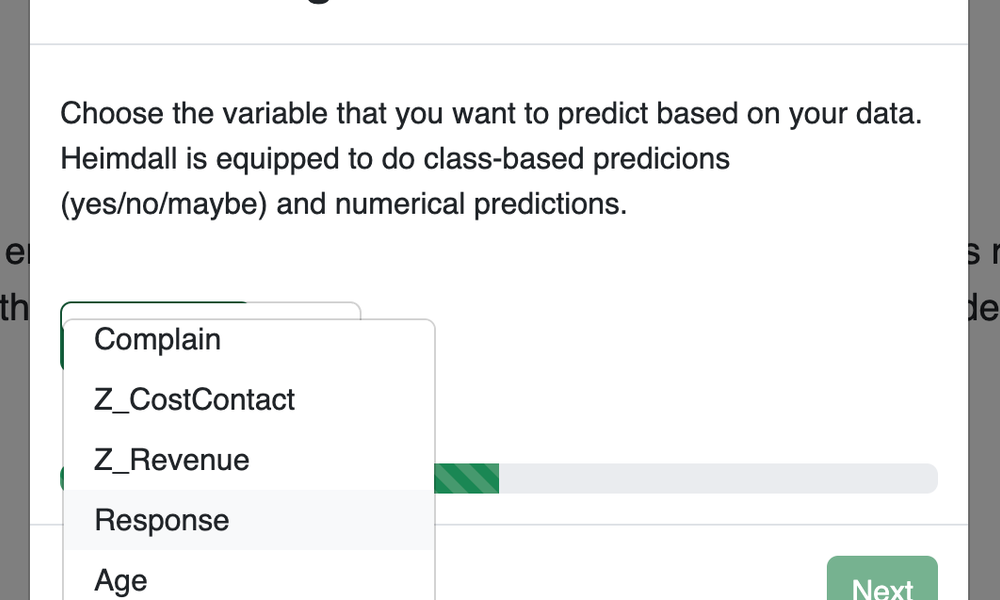
There are a lot of columns in this data set but the one we are curious about is called Response. Response will be the target variable we select in Heimdall. Response is a binary coded variable which means it takes a value of 0 or 1. In our case, 0 means that the customer will not respond to the offer or 1 which means that the customer will respond to the offer. Download this data set from Kaggle to get started.
Building our Heimdall model
First things first - we have to get registered for a Heimdall account.
Once you are registered, you will be on the Heimdall home page. You can then click on the Build Now button to go to the Model Engine. Once there, if you click Build Now again to get started with the data ingestion process.
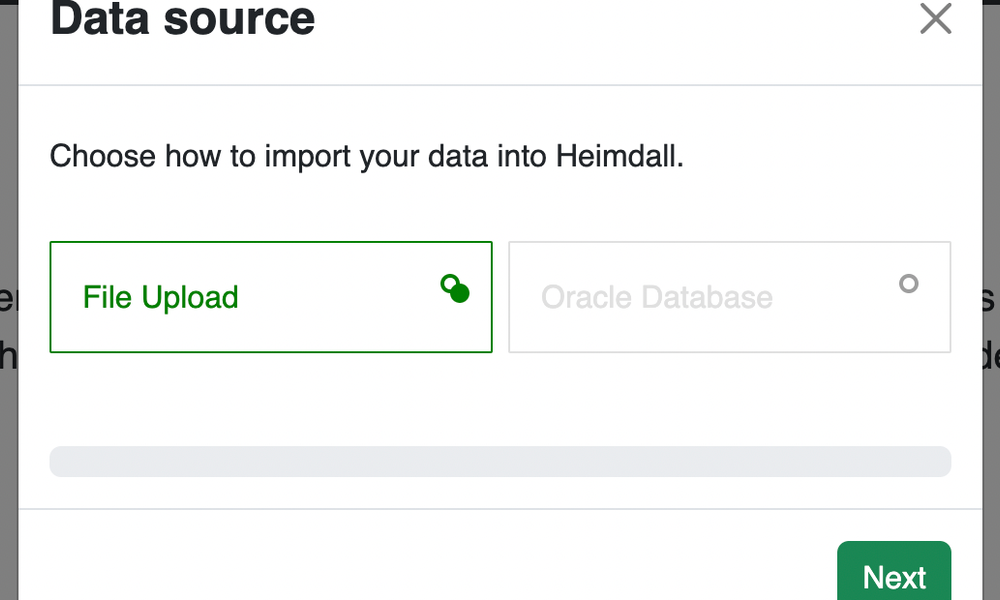
- Choose File Upload and upload the marketing CSV file we got from Kaggle
- Choose the target variable that we are interested in predicting: Response
- Click optimize to allow Heimdall to find the best possible model for our use case.
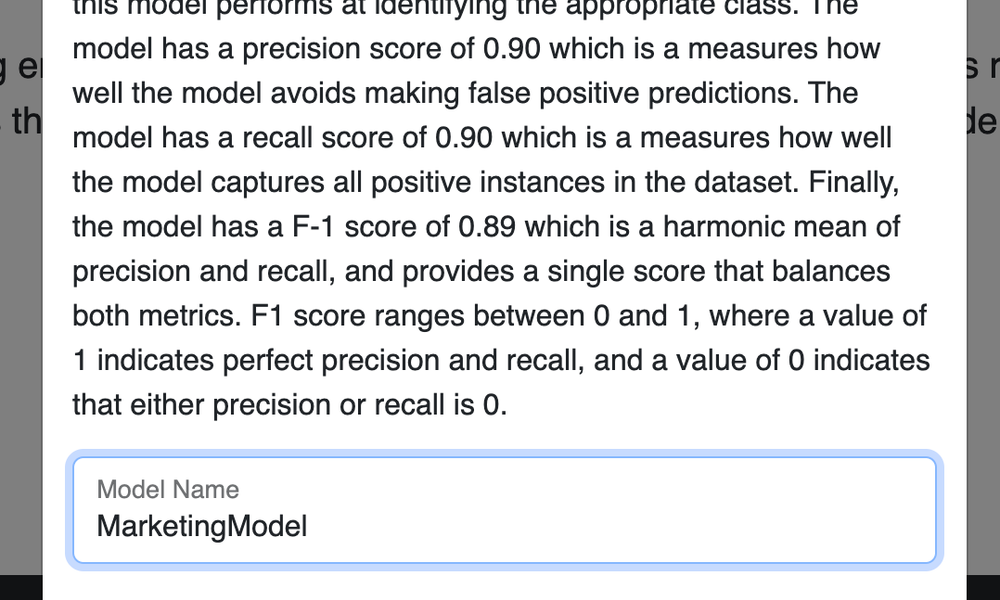
- Once optimized, we will get the model summary, which will provide a high level summary of our model. In this case our model is 90% accurate with some additional classifications metrics like F-1 which is a mean of precision & recall scores. Learn more about what these metrics mean here. We can give our model a name and save it.
Configuring our Heimdall Model Endpoint
Once we have our model built, we have to make sure that it can accessed externally by another application. This is where we take our optimized model created by Heimdall and make it Production ready.
From the model inventory page, click on the model that we just saved to view the model details page. Here we can better understand our model and configure it for production.
- Click on Configure Endpoint to get your model's API key. Save this API key somewhere safe because you will need it to query the model.
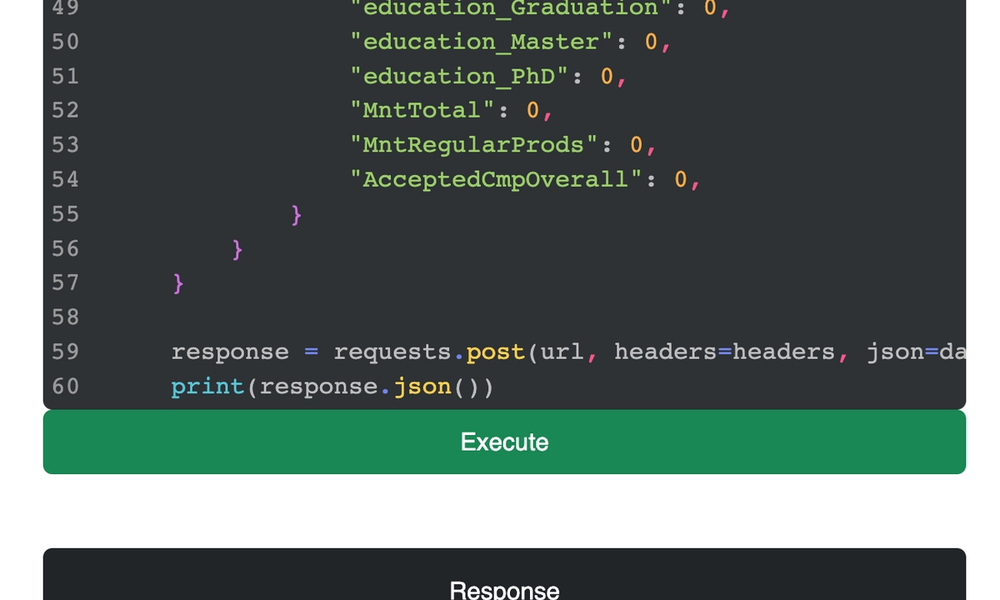
- You can test your model by pasting in the API key into the code editor and clicking Execute. This should give you a prediction back in the response section.
You are now ready to build your single page react app which will query your prediction.
Setting up a new React SPA
Let's first set up a new React SPA (single-page application) in our local developer environment. Make sure that you have already installed Node JS before continuing.
Run the following command in your shell, which you can find in Terminal.app if you are on Mac or CMD if you're on Windows. Make sure to change heimdall-react to the name of your project.
npx create-react-app heimdall-reactOnce that is built out, run this command to go into the new project directory that the command made:
cd heimdall-reactOpen our newly created project in your code editor of choice. Once open, we should see our new React app! To double-check that everything is running smoothly, run the following command to view the React app in the browser:
npm startWe should be able to see our application running at localhost:3000!
In the project directory, navigate to Heimdall-react/src and open App.js.
This is where we will build our react single page application.
Heimdall Model Integration
Now that our react app is set up, we can integrate our model endpoint into our react application. We have to install a package named Axios in order to make API calls to Heimdall. If you app is still running in your command line, Ctrl-C to stop the app. Run the below command to install axios.
npm install axiosOnce this fully installed we need to add in some boiler-plate code to get started. Open up your App.js and paste the below code in.
- We add in two constants, data and error, to set the data that we receive from Heimdall and the error we receive from Heimdall.
- useEffect is a React hook which lets you do certain tasks as the page is loading. In this case we are going to make a request to our Heimdall model.
- Return is the actual HTML that is returned on page load. This will do things like display the data we receive from Heimdall.
import React, { useEffect, useState } from 'react';
import axios from 'axios';
import logo from './logo.svg';
import './App.css';

function App() {
  const [data, setData] = useState(null);
  const [error, setError] = useState(false);

  useEffect(() => {
    const fetchData = async () => {
      try {
        const response = await axios.post(
          'https://predict.heimdallapp.org/predict/',
          {
            features: {
              features: {

              }
            }
          },
          {
            headers: {
              'X-api-key': '',
              'X-username': '',
              'x-model-id': ''
            },
          }
        );

        setData(response.data);
      } catch (error) {
        setError(true);
      }
    };

    fetchData();
  }, []);

  return (
    <div className="App">
      <header className="App-header">
        <h1 className='custom-color' style={{ fontSize: '5rem' }}>Custom ML Platform</h1>
        {error ? (
          <p className='custom-color'>Error occurred while fetching data. Please make sure you have a valid API key, username, & model id.</p>
        ) : data ? (
          <div>
            <h3 className='custom-color'>Data Received:</h3>
            <pre className='custom-color'>{JSON.stringify(data, null, 2)}</pre>
          </div>
        ) : (
          <p>Loading data...</p>
        )}
      </header>
    </div>
  );
}

export default App;
Now that we are all setup on the React side, we need to fill in our request details for Heimdall. There are 4 main items we need to get in order to make the request from our react-app to Heimdall:
- API Key: one time key saved when we configured the model. If you lost your key you can always disable the endpoint and re-configure to get a new key.
- Username: the username of your Heimdall account.
- Model ID: the id associated with your Heimdall model.
- Features: a dictionary of features from your original data.
We can get all of these from the code editor in the model details page. Copy each item into the useEffect hook. Our useEffect hook should look like this:
useEffect(() => {
    const fetchData = async () => {
      try {
        const response = await axios.post(
          'https://predict.heimdallapp.org/predict/',
          {
            features: {
              features: {
                "Income": 0,
                "Kidhome": 0,
                "Teenhome": 0,
                "Recency": 0,
                "MntWines": 0,
                "MntFruits": 0,
                "MntMeatProducts": 0,
                "MntFishProducts": 0,
                "MntSweetProducts": 0,
                "MntGoldProds": 0,
                "NumDealsPurchases": 0,
                "NumWebPurchases": 0,
                "NumCatalogPurchases": 0,
                "NumStorePurchases": 0,
                "NumWebVisitsMonth": 0,
                "AcceptedCmp3": 0,
                "AcceptedCmp4": 0,
                "AcceptedCmp5": 0,
                "AcceptedCmp1": 0,
                "AcceptedCmp2": 0,
                "Complain": 0,
                "Z_CostContact": 0,
                "Z_Revenue": 0,
                "Age": 0,
                "Customer_Days": 0,
                "marital_Divorced": 0,
                "marital_Married": 0,
                "marital_Single": 0,
                "marital_Together": 0,
                "marital_Widow": 0,
                "education_2n Cycle": 0,
                "education_Basic": 0,
                "education_Graduation": 0,
                "education_Master": 0,
                "education_PhD": 0,
                "MntTotal": 0,
                "MntRegularProds": 0,
                "AcceptedCmpOverall": 0,

              }
            }
          },
          {
            headers: {
              'X-api-key': 'YOUR-API-KEY',
              'X-username': 'YOUR-USER-NAME',
              'x-model-id': 'YOUR-MODEL-ID'
            },
          }
        );

        setData(response.data);
      } catch (error) {
        setError(true);
      }
    };

    fetchData();
  }, []);
Once you have all the above pieces set up you have successfully integrated Heimdall into your single page react app! Run npm start in your command line to open you app on localhost:3000. You should now see the below app.
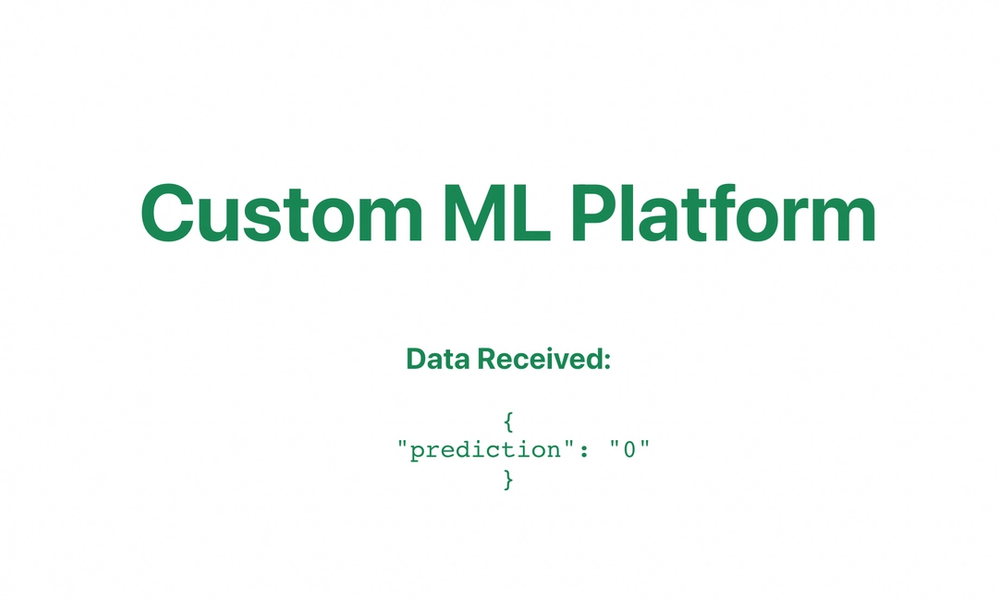
We built a ML App!
Congratulations! You have officially build a single page react app with machine learning capabilities!
The exciting part is that you didn't have to write any modeling specific code, build any model pipelines or even write backend login to integrate machine learning into your application. You can now send dynamic values to those features so that a particular user interaction will generate new predictions.
What do you think of your ML app built with React and Heimdall? Let me know on twitter! I would love to see you creations! The sky is the limit with your ML App. Happy building!
Heimdall – Harness the Power of ML
Heimdall is an automatic machine learning platform that gives you (and your team) a ML backend to build incredible user experiences that are powered by machine learning. It offers quick and efficient model building with even quicker model deployment. Heimdall allows your teams to quickly ideate and build out ML products 80% faster.
Heimdall scales from weekend projects to enterprise needs. Contact us today to be ready to compete in the digital age.