Heimdall Vision: Enabling You to Build Powerful Image Classification Applications
TLDR; Heimdall Vision Alpha release enables you to convert your image based data into raw data that can be used for various purposes like modeling or visualization.
Heimdall Vision
The past couple weeks have been very busy here at Heimdall ML. We have implemented a variety of tweaks to our platform both on the backend and the frontend to build an incredible experience for our users. As many of your know, we announced project Ymir a couple weeks ago in this blog post. We rolled out the first product to our unstructured suite, Heimdall Read, two weeks ago. We are thrilled to bring your Heimdall Vision.
Heimdall Vision is a result of weeks of research and execution. Vision builds on major industry standards and empowers you to mine data from your images. We are thrilled to add Vision to our unstructured suite because we believe a lot can be achieved by analyzing both your text and image data.
Here is a quick summary of its current capabilities:
- Convert image to tabular data
- Extract the RGB color histograms along with a combined pixel metric
- Calculate texture related information of each pixel block
- Calculate gradient related information of each pixel block
- Interactive UI with powerful neural network for object detection
There are currently two ways to interact with Heimdall Vision - through our user interface or through API. We are thrilled to offer API access to our community because we think it will be a game-changer for any data driven team.
A Game of Chess
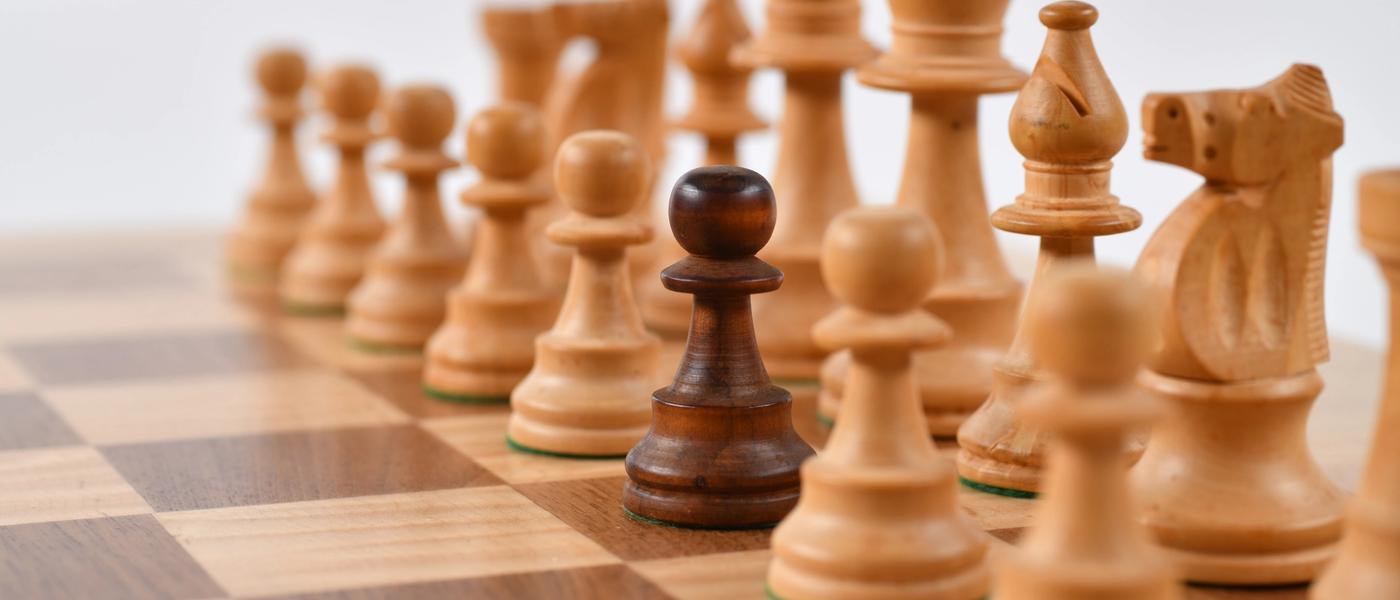
A game of chess has some important pieces but can we help a computer understand those pieces? Today we are going to spend some time showing you how you can leverage the Heimdall Vision API to generate some valuable insights.
Say you want to build an app which can classify if the chess piece you are looking at is a queen or a rook. You would need to teach the computer the difference between the two. Unfortunately computers don't have the natural ability to tell images apart but Heimdall Vision comes to the rescue. This example is based on a chess piece kaggle dataset. This dataset includes many image variations of particular chess pieces.
Configuring Heimdall Vision
Once we are registered for an account with Heimdall ML, we can head over the the Heimdall Vision page. Once we get there, we want to make sure that we enable API access for Heimdall Vision. We can "Configure API" and click enable to get our API key. After we save our key, we can get started on interacting with the API.
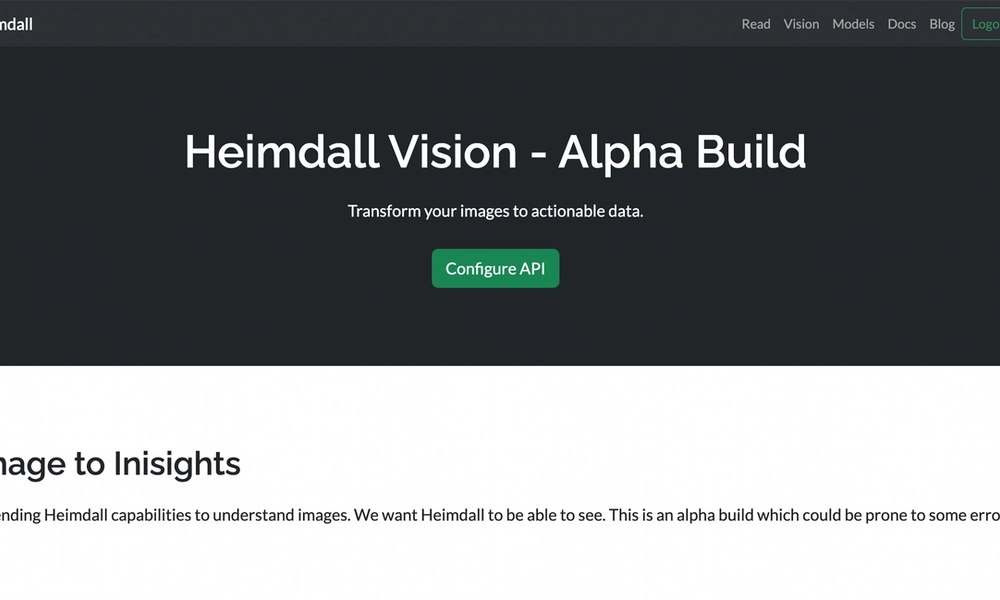
Before we write any code, we want to first make sure to head over to the Documentation page to look at the API reference for the Heimdall Vision API. This will show us what headers and request body elements we will have to send in order to interact with Heimdall Vision.
Based on the documentation, we will have to send our API key along with our user name in the request header and the image that we want to analyze in the request body.
We are now ready to start writing our python code to extract insights from our reviews data!
Heimdall Vision In Action
We are going to use a Jupyter notebook environment in order to work with our dataset. Feel free to use any python environment to get the insights that you need! We recommend using Jupyter as part of the Anaconda distribution or a Google Collab Notebook.
Lets get started by importing the necessary packages
import os
import requests
import pandas as pd
import matplotlib.pyplot as plt- OS library will help us access the filesystem
- Pandas library will help us with data wrangling
- Requests library will help us connect to Heimdall Vision
- Matplotlib library will allow us to plot visualize our data
Let's go ahead and configure our Heimdall Vision API endpoint
# Define the API endpoint URL
url = 'https://vision.heimdallapp.org/vision/v1/api/process'

# Define headers
headers = {
    "x-username": "YOUR-USERNAME",
    "x-api-key": 'YOUR-API-KEY'
}
This above code sets the URL endpoint and the two headers we need. Make sure to swap for your username and API key.
For the next step let's locate the file we downloaded from kaggle. For ease of use, we will go ahead and rename our download file as chess and removed the _resized keyword from each sub folder. This is what our downloaded folder structure should look like
- chess [top level folder]
- pawn
- knight
- bishop
- rook
- queen
Now we can let python know about our directory so that it can properly read the files.
# Define the folder path containing chess piece images
folder_path = "~YOUR-PATH/chess"
main_folder_path = os.path.expanduser(folder_path)

# Initialize an empty DataFrame
results_df = pd.DataFrame(columns=['File', 'Chess_Piece', 'Response'])
In the above code we set the path and expand the user since we are using the ~ in front of the path. You don't need to expand user if you use your fully qualified path.
The next section is very jam packed with code so follow along in the next section so you can clearly understand whats going on in pseudo-code.
# Check if the main folder exists
if os.path.exists(main_folder_path) and os.path.isdir(main_folder_path):
    # Recursively traverse subdirectories
    for root, dirs, files in os.walk(main_folder_path):
        for filename in files:
            if filename.endswith('.jpg') or filename.endswith('.jpeg'):
                file_path = os.path.join(root, filename)
                chess_piece_name = os.path.basename(root)
                files = {'file': (filename, open(file_path, 'rb'), 'image/jpeg')}

                # Send the POST request
                response = requests.post(url, headers=headers, files=files)

                # Check the response status code
                if response.status_code == 200:
                    # The request was successful, and you can parse the response JSON
                    response_data = response.json()

                    # Add the filename and chess piece name to the data
                    response_data["File"] = filename
                    response_data["Chess_Piece"] = chess_piece_name

                    # Unpack the combined_histogram into separate columns
                    combined_histogram = response_data.get("combined_histogram", [])
                    for i, value in enumerate(combined_histogram):
                        response_data[f"combined_histogram_{i+1}"] = value
                    response_data.pop("combined_histogram", None)

                    # Unpack the gradients list into separate columns
                    gradients = response_data.get("gradients", [])
                    for i, value in enumerate(gradients):
                        response_data[f"gradient_{i+1}"] = value
                    response_data.pop("gradients", None)

                    # Unpack the textures list into separate columns
                    textures = response_data.get("textures", [])
                    for i, value in enumerate(textures):
                        response_data[f"texture_{i+1}"] = value
                    response_data.pop("textures", None)

                    # Append the data to the DataFrame
                    results_df = results_df.append(response_data, ignore_index=True)
                else:
                    # The request encountered an error
                    print(f"Error processing {filename}: {response.status_code} - {response.text}")

    # Print the DataFrame with the results
    print(results_df)
else:
print(f"The folder '{main_folder_path}' does not exist or is not a directory.")- First we check if the folder path we gave to the chess directory exists, if it doesn't the the last else statement is called and prints that the directory doesn't exist
- If the main directory exists, then navigate into each subdirectory recursively and identify an image one by one in each subdirectory.
- When an image is found, send it to the Heimdall Vision endpoint
- If Heimdall Vision sends a success message back, then add the file name and chess piece based on the folder name and file name. This is why we named the sub-folders as the actual chess piece.
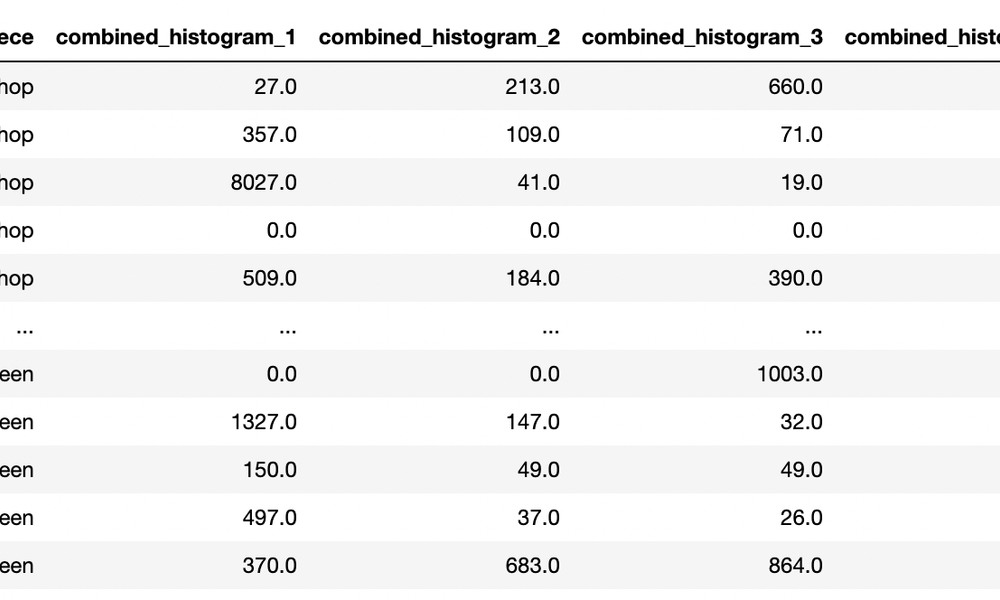
- We now need to unpack each nested dictionary from Heimdall so that each value falls on individual columns. The color histograms are a doubly nested dictionary so we need to first split out all the individual lists: red_histogram, green_histogram, blue_histogram, & combined_histogram. In this case we are only choosing to keep the combined_histogram but you can choose to keep all 4 if you want to.
You will just need to add this code block for each histograms you want to extract. Remember you can also do this process in functions - we have chosen to do this all in one loop.
red_histogram = response_data.get("red_histogram", [])
for i, value in enumerate(red_histogram):
  response_data[f"red_histogram{i+1}"] = value
response_data.pop("red_histogram", None)- We continue unpacking both the textures and gradients in the similar way and then append the row to the data frame.
This process will keep looping for every image in every sub directory for the folder that we provided. This will take a couple minutes to run as Heimdall Vision will now process over 600 images of chess pieces.
Once Heimdall Vision is done processing our images, we will need to do some data cleanup before the data is ready for use.
We will drop some columns with some descriptive text values and all the lists that we have already unpacked.
# List of column names you want to drop
columns_to_drop = ["File", "Response", "filename", "red_histogram", "green_histogram", "blue_histogram"]

# Drop the specified columns
data_dropped = results_df.drop(columns=columns_to_drop)
Now we will be left with the data set that we need! This new data set will have all numerical features that describe the image and one target column which says what the image actually is.
Lets visualize the distribution of our chess pieces using matplotlib. This will build a histogram of the Chess_Piece variable from our dataframe.
plt.hist(data_dropped["Chess_Piece"], bins=10, edgecolor='k')
plt.title(f'Histogram of {"Chess_Pieces"}')
plt.xlabel("Chess_Piece")
plt.ylabel('Frequency')
plt.show()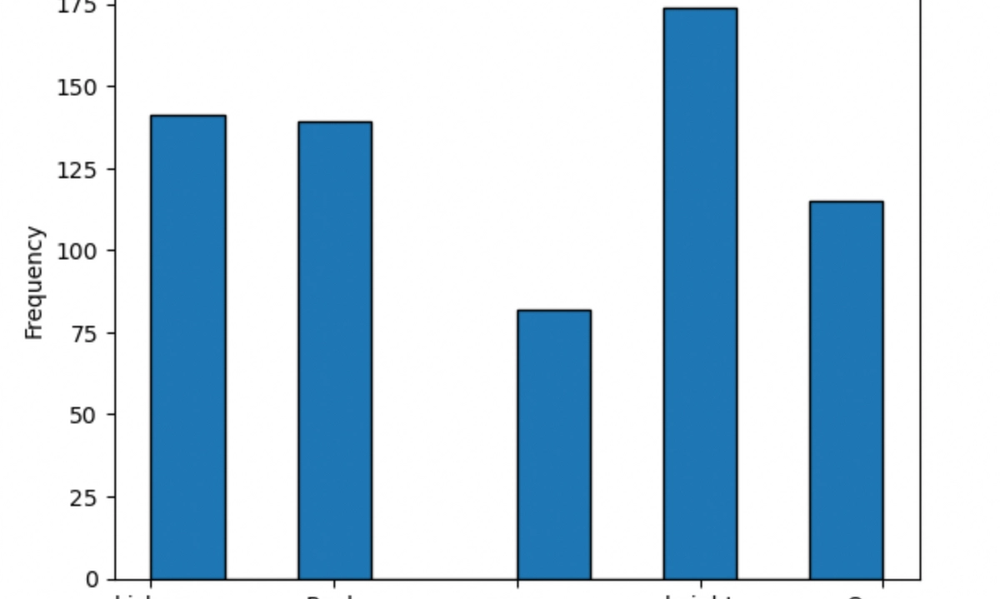
This type of distribution can help us see how many images we have of each class. In this case we can see that we don't have equal distributions. We have more than double the amount of knight images when compared to pawns. This type of analysis could come in handy before we go into building classification models.
Let's go ahead and export our data to a csv file so we can quickly build a model with Heimdall ML!
data_dropped.to_csv('your-path/results.csv', index=False)Auto-ML with Heimdall
Now that we have a csv data file we can use Heimdall's core machine learning engine to build a model to identify chess pieces. The core machine learning engine is still in its early stages but can still handle this data set.
Let's head over to the Core ML page by going to home and then clicking "Build Now". Since we saved a csv file, we can go ahead and choose file upload from the first menu option.
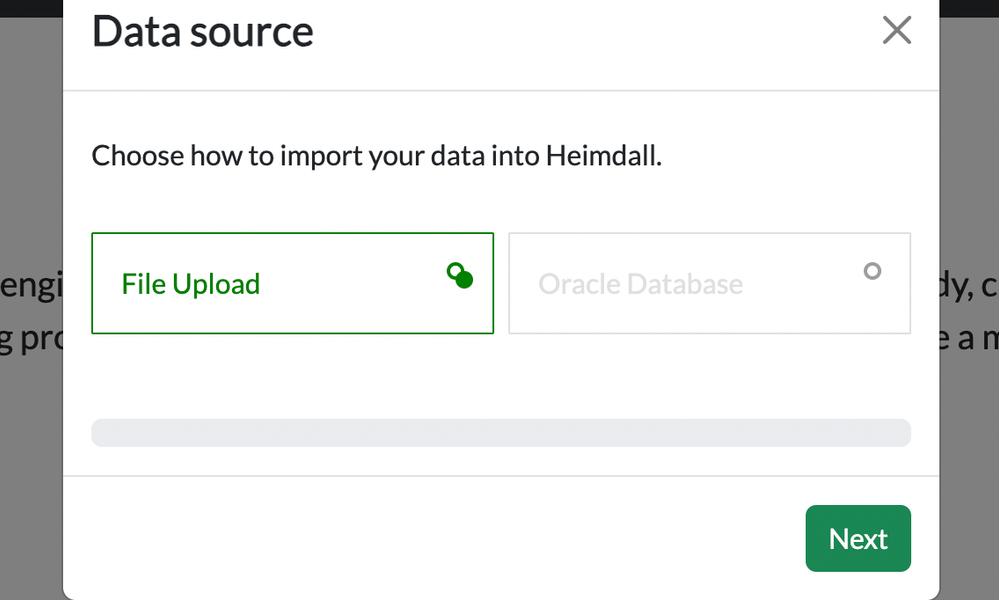
In the feature selection screen, we will select the Chess_Piece as the target because that is the value we are trying to predict and hit next. In the next screen we will hit "Optimize" and give Heimdall a couple minutes to build an optimized model for our data set.
Once the modeling is complete, Heimdall will show us the results. In this case, the model is 43% accurate. Let's go ahead and save the model to see how we can use this model. We now have a baseline model performance.
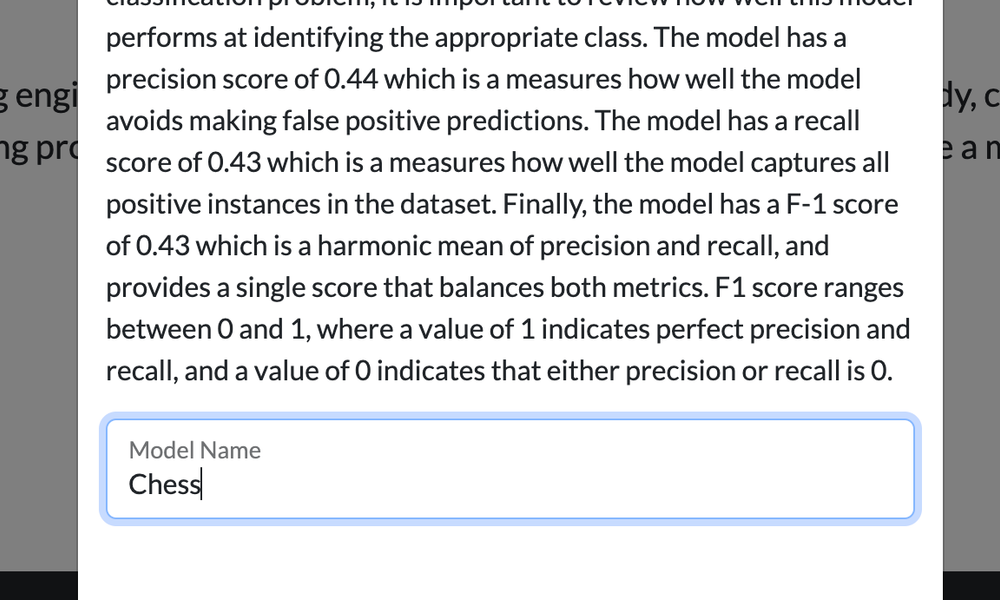
Once we save the model, we will be redirected to the model inventory page, where we will see our new model. Once we click into it, we can quickly see the rankings of our features, with various combined histogram values taking the top 5 most important features.
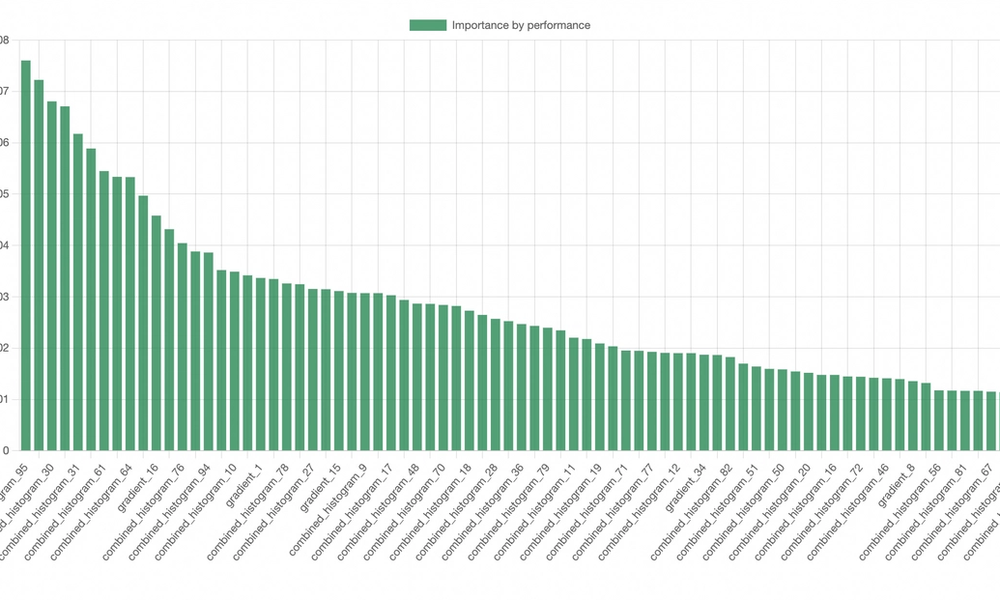
Let's finally configure our model endpoint by hitting the "Configure Endpoint" button and saving our API key. Now things get really exciting because we can use Heimdall Vision & Heimdall ML hand in hand to deliver an ML experience to our end users.
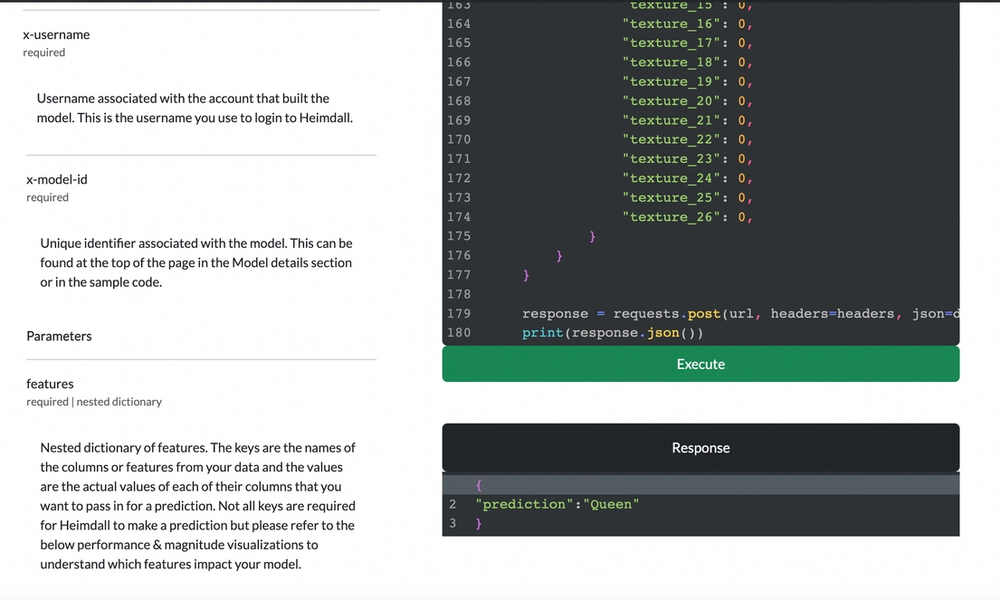
We can now build an app where our end user comes in and uploads and image. We then send that image to Heimdall Vision to collect the necessary stats, do the necessary pre-processing, and then send those stats over to the Heimdall ML to get a prediction.
This is incredibly powerful because we can now build a really powerful data pipeline, with data pre-processing capabilities to feed directly into a machine learning model. Say that we chose to go another route and build our own model, we can still use the Heimdall Vision API to get the stats we need to get predictions from our model - in real time.
Hope you enjoyed this end to end ML application life-cycle using Heimdall ML. I hope this tutorial helps to show you the exciting possibilities that lie ahead with Heimdall ML. We are very excited to continue our work on democratizing the access to machine learning!
Heimdall – Harness the Power of ML
Heimdall is an automatic machine learning platform that gives you (and your team) a ML backend to build incredible user experiences that are powered by machine learning. It offers quick and efficient model building with even quicker model deployment. Heimdall allows your teams to quickly ideate and build out ML products 80% faster.
Heimdall scales from weekend projects to enterprise needs. Contact us today to be ready to compete in the digital age.